
How to disable CSS in Squarespace editor mode (But active on the live site)
In this tutorial, you'll learn how to disable CSS in the edit mode, but kept active on the live site. If you’ve ever added custom CSS to your Squarespace 7.1 site and then opened Editor Mode, you’ve probably experienced this:
Layout looks broken
Sections overlap
Sticky elements cover controls
Custom animations make editing difficult
The good news? You can disable your custom CSS while editing — and keep it fully active on the live site.
Table of Contents
Why this happens
When you add CSS via:
Page → Custom Code → Custom CSS
That CSS loads everywhere — including Editor Mode.
Squarespace doesn’t automatically separate:
Front-end (live visitors)
Backend (editor view)
The Smart Solution
THe mart solution is to target the live site only. Squarespace adds a special class to the <body> when you're in editing mode. We can use that to conditionally apply CSS..
Step-by-step instructions
Step 1: From the Squarespace dashboard navigate to Pages > Custom Code > Custom CSS and paste the code below
/* Apply styles only when NOT in editor mode */
body:not(.sqs-edit-mode-active) {
/*your code goes in here*/
}
When should you use this?
This technique is especially helpful if you're using:
Sticky footers
Full-screen overlays
Scroll hijacking
Custom navigation replacements
Full viewport hero sections
Custom modals
Key Takeaways
Squarespace loads custom CSS in both live view and editor mode by default.
The
.sqs-edit-modeclass is automatically added when you're editing.Wrapping your CSS inside
body:not(.sqs-edit-mode)keeps it active on the live site only.This method prevents layout conflicts while editing.
You can selectively disable animations, positioning, overlays, or entire style groups.
FAQs
Will this affect my live website?
No. Your styles remain fully active on the live site. They are only disabled while you're in the Squarespace editor.
Does this work on Squarespace 7.1 Fluid Engine?
Yes. This works on all Squarespace 7.1 sites, including Fluid Engine.
Can I disable only certain styles instead of all CSS?
Absolutely. You can wrap specific selectors instead of your entire CSS file:
body:not(.sqs-edit-mode) .sticky-header {
position: fixed;
}
Can I disable animations only while editing?
Yes. Use:
.sqs-edit-mode * {
animation: none !important;
transition: none !important;
}
This keeps your layout intact but removes motion effects during editing.
Will this break third-party scripts?
No. This method only controls CSS. If you want to disable scripts during editing, you would need a small JavaScript condition.
How do I know if I'm in editor mode?
When editing, Squarespace automatically adds the class:
.sqs-edit-modeto the <body> element. That’s what makes this solution possible.
Conclusion
Custom CSS gives you powerful design control in Squarespace — but it can sometimes interfere with the editing experience.
By using:
body:not(.sqs-edit-mode)you create a clean separation between your live site design and your editor workspace.
This approach allows you to:
Maintain full creative freedom
Prevent layout conflicts while editing
Improve workflow efficiency
Keep your client sites stable and professional
It’s a simple fix, but one that makes a big difference in day-to-day development.
If you're building advanced layouts, sticky elements, overlays, or animation-heavy designs, this technique should be part of your standard Squarespace toolkit.
If you have any questions or need any help with your Squarespace website design, you can book a 1:1 consultation.
Learn how to create collapsible form sections in Squarespace 7.1 using CSS and JavaScript to organise long forms and improve the user experience.
By default, folder titles in Squarespace 7.1 are not clickable. Instead, they simply expand to reveal the pages inside the folder.
The Squarespace 7.1 Accordion block is a great way to organise content such as FAQs, services, features, and product information.
If you're using categories on your Squarespace 7.1 Shop page, you've probably noticed that the first filter tab is always labelled "All."
If you regularly share CSS, JavaScript, HTML, or code snippets on your Squarespace website, you've probably noticed the Monospace text option in the text editor.
Squarespace 7.1 Auto Layouts (List Sections) are great for structured content, but they quickly run into a common limitation: long descriptions make layouts feel crowded and harder to scan.
If you're publishing on Substack and running a website on Squarespace, you've probably wished you could display your latest posts directly on your site without copying and pasting them manually every time.
Background videos are a powerful way to create visual impact on your website, especially on hero sections built in Squarespace 7.1.
Not every page on your website needs to be visible to the public or searchable on platforms like Google Search. Whether you're working on a draft page, creating private content, or building a conversion funnel, controlling page visibility is essential when using Squarespace.
Vertical video has become the dominant format across platforms like TikTok, Instagram Reels, and YouTube Shorts. As a result, many website owners now want to display portrait videos on their websites.
Videos are one of the most powerful elements you can add to a website. They grab attention, increase engagement, and help explain your products or services quickly.
In this tutorial, you'll learn how to disable CSS in the edit mode, but kept active on the live site.
In this tutorial, you'll learn how to remove space under code blocksin Squarespace 7.1. If you’re embedding third-party widgets, videos, or custom code in Squarespace 7.1, you might notice an unexpected gap appearing below your code blocks.
Blogging has changed a lot over the past few years. Search engines are smarter, AI summaries appear at the top of results, and users expect faster, clearer answers. With all these changes, many small business owners are asking a fair question. Does blogging on Squarespace still help with SEO?
Artificial intelligence has moved from being a novelty in web design to becoming a practical tool used by developers, designers, and business owners alike. AI is no longer just about chatbots or auto-generated content.
Running a small business means juggling visibility, credibility, and ease of management, often with limited time and budget. Website platforms have continued to evolve, but the core needs of small businesses have not changed much.
Organic traffic has always been a cornerstone of digital growth, but by 2026 its meaning has expanded far beyond simple search engine rankings. In the past, organic traffic mainly referred to website visitors who arrived through unpaid search results.
Growing a service-based business requires more than just offering excellent services it’s about building a strong brand, attracting the right clients, and creating systems that allow your business to scale.
The centered-links header in Squarespace 7.1 is known for one frustrating quirk: even when there appears to be sufficient horizontal space, the navigation links can unexpectedly wrap onto multiple lines and disrupt the layout.
Creating your first digital product can feel like a daunting task, but with the right roadmap, you can go from a simple idea to a fully launched product with confidence.
Pinterest is a powerful visual platform that can drive traffic to your website especially if your business is image-heavy, such as design, fashion, food, or travel.
Summary blocks in Squarespace 7.1 are a powerful tool for showcasing blog posts across different pages. These blocks often include a ‘Read More’ link, encouraging visitors to click through and read the full article.
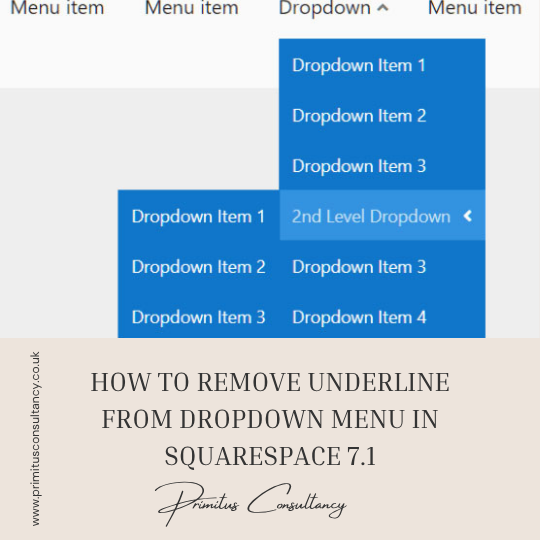
By default, Squarespace 7.1 applies underlines to links in your site’s header and dropdown menus—especially when hovered or active. While this can help indicate clickable elements, many site owners prefer a cleaner, more modern look without the underline, especially in dropdown menus.
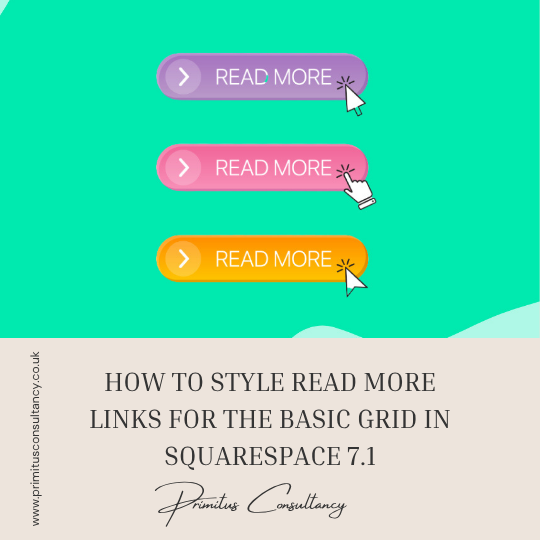
The "Read More" link in Squarespace’s basic blog grid layout often comes with default styling that might not align with your site’s visual identity. With a few simple tweaks using custom CSS, you can transform this link into a branded and interactive element that encourages clicks and improves the overall look of your blog feed.

If you're building a website that needs to reach an international audience—or simply want your content to appear in a different language—changing your language settings on Squarespace is a great way to enhance user experience and increase accessibility.
The "Read More" link in your blog summaries or excerpts on Squarespace can help guide visitors to the full post. However, by default, this link often comes underlined, which might not always match your site's aesthetic.
By default, Squarespace 7.1 adds an underline or hover effect to navigation links in your site header — but it may not always match your brand’s color palette.
The “Read More” link is a call to action that leads visitors deeper into your content. However, in Squarespace 7.1’s Basic Grid Blog Layout, these links often appear unevenly positioned—especially when blog post excerpts vary in length.
This tutorial will show you how to add round corners to Youtube and Vimeo videos using custom CSS in your Squarespace website. This tutorial is specifically designed for Squarespace 7.1.

This tutorial will show you how to add Bluesky icon for social links using custom CSS in your Squarespace website. This tutorial is specifically designed for Squarespace 7.1.
All work in this guide is provided ‘as-is’. Other than as provided this guide makes no other warranties, expressed or implied, and hereby disclaims all implied warranties, including any warranty of fitness for a particular purpose.
If you require professional advice, you can book our consultation services.


 Primitus Consultancy
We work with small and medium-sized businesses to help create a professional online presence. We provide a one shop full-service design studio in London, United Kingdom.