How to add a border around a video block on Squarespace
Videos are one of the most powerful elements you can add to a website. They grab attention, increase engagement, and help explain your products or services quickly.
However, by default, Squarespace video blocks don’t include styling options such as borders. If you want your videos to stand out or match your website’s design style, you’ll need to add a border using custom CSS.
In this tutorial, you’ll learn how to add a border around a video block in Squarespace, customize the border style, and make it fit perfectly with your site design.
Table of Contents
Why Add a Border Around a Video Block?
Borders may seem like a small design detail, but they can significantly improve the visual structure of a page.
Adding a border around your video block can help:
Highlight important content
Create a clean framed design
Match your brand styling
Improve visual separation between sections
Squarespace video blocks are designed to be simple to use, allowing you to upload videos or embed them from platforms like YouTube or Vimeo.
However, design customisation options are limited, which is why custom CSS is the best solution for adding borders and styling video blocks.
How to Add a Border Around a Video Block
Follow these simple steps.
Step 1: Add Your Video Block
Open the page you want to edit.
Click Edit.
Add a Video Block.
Upload your video or paste a YouTube/Vimeo link.
Once your video is added, you're ready to apply the styling.
Step 2: Add the CSS Code
Go to:
Page → Custom Code → Custom CSS and paste the code below
/* Adding a border to a video block */
.sqs-native-video .native-video-player {
border: 4px solid #000000 !important;
}
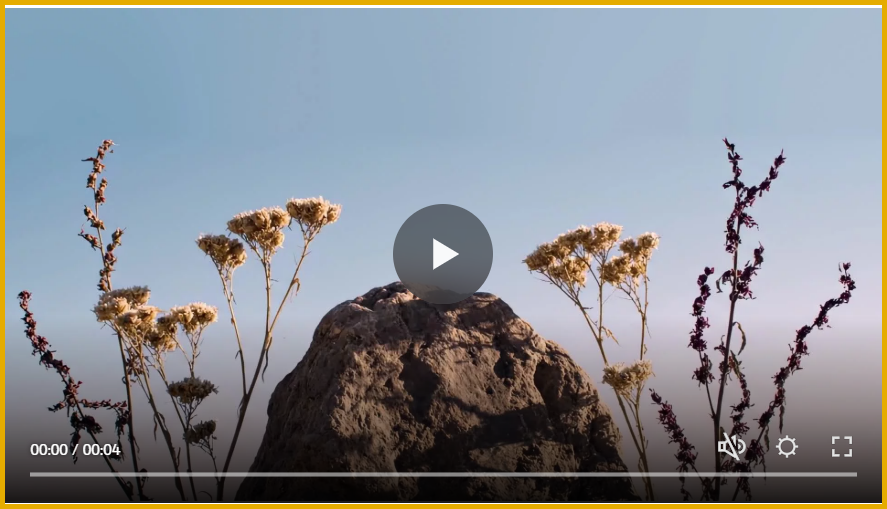
This code tells Squarespace to place a border around the video player element.
The border property defines the width, style, and colour of the border.
Targeting a Single Video Block
If you only want the border applied to one specific video, use the block ID instead of applying the style site-wide.
Example:
/* Adding a border around a video block */
#block-yui_1234567890 .sqs-native-video .native-video-player {
border: 4px solid #000000 !important;
}
How to Find the Block ID
Right-click the video block
Click Inspect
Look for the block ID in the HTML
This ensures the styling only affects one video.
When should you use video borders?
Borders work particularly well for:
Product demonstrations
Testimonials
Landing page hero videos
Portfolio videos
Course previews
They help guide visitors’ attention to the content you want them to focus on.
Key Takeaways
Squarespace video blocks do not include built-in border styling, but you can easily add one using custom CSS.
Adding a border helps highlight videos and improve visual hierarchy on your page.
The basic CSS property used is the
borderproperty, which controls width, style, and colour.You can customise the border by adjusting thickness, colour, rounded corners, or shadows.
If you only want the style applied to one video block, you can target the block ID instead of styling all videos site-wide.
Borders work particularly well for portfolio videos, product demonstrations, testimonials, and landing page content.
Small design enhancements like this can help make your Squarespace website look more polished and professional.
FAQs
Can you add a border to a video block in Squarespace without CSS?
No. Squarespace does not currently include a built-in option for adding borders to video blocks. To style video blocks with borders, shadows, or rounded corners, you need to use custom CSS.
Will the CSS border work on YouTube and Vimeo embeds?
Yes. The CSS border works on most embedded videos, including YouTube, Vimeo, and Squarespace hosted videos, as long as the correct video container element is targeted.
Can I add rounded corners to a video in Squarespace?
Yes. You can add rounded corners by using the border-radius property in CSS.
Example:
.sqs-native-video .native-video-player {
border: 4px solid #000;
border-radius: 20px;
}
This gives the video a softer and more modern design.
Can I add a shadow instead of a border?
Yes. Instead of a border, you can use a box shadow to create depth around the video.
Example:
.sqs-native-video .native-video-player {
box-shadow: 0 10px 25px rgba(0,0,0,0.2);
}
This can create a more subtle and modern visual effect.
Conclusion
Adding a border around a video block in Squarespace is a simple design enhancement that can make your website look more polished and professional.
With just a few lines of CSS you can:
Frame your videos
Match your brand style
Create better visual hierarchy
Improve overall page design
Small design improvements like this can make a big difference in how visitors perceive your website.
If you regularly customise Squarespace using CSS, this technique is another useful addition to your toolkit.
If you have any questions or need any help with your Squarespace website design, you can book a 1:1 consultation.









All work in this guide is provided ‘as-is’. Other than as provided this guide makes no other warranties, expressed or implied, and hereby disclaims all implied warranties, including any warranty of fitness for a particular purpose.
If you require professional advice, you can book our consultation services.