How to make video blocks portrait on Squarespace
Vertical video has become the dominant format across platforms like TikTok, Instagram Reels, and YouTube Shorts. As a result, many website owners now want to display portrait videos on their websites. However, Squarespace video blocks are typically designed for landscape videos, which means portrait videos can appear with empty space on the sides or look poorly aligned.
Fortunately, with a small CSS adjustment, you can modify the video container so your portrait videos display correctly and look more balanced on your Squarespace site.
In this tutorial, you'll learn how to make video blocks portrait on Squarespace using custom CSS, how the code works, and how to customise the layout to fit your design.
Table of Contents
Why Use Portrait Videos on Squarespace
Portrait videos are increasingly popular because they are optimised for mobile viewing. Since most website visitors now browse on smartphones, vertical videos often feel more natural and engaging.
Using portrait videos on your website can help:
Display social media content
Showcase product demonstrations
Highlight testimonials or short clips
Repurpose TikTok, Reels, or Shorts content
Create a modern, mobile-friendly layout
However, Squarespace’s default video block assumes a horizontal video format, which is why portrait videos may not display correctly without adjustments.
Understanding the Default Video Layout
Squarespace video blocks typically use a 16:9 landscape container. This is ideal for traditional videos but not for vertical ones.
When you upload a portrait video, Squarespace still places it inside the landscape frame. This often results in:
Empty space on the sides
A smaller video display
An unbalanced layout
To fix this, we need to adjust the video container height so it better matches a portrait aspect ratio.
How to Make Video Blocks Portrait
Follow these steps to adjust the video container using custom CSS.
Step 1: Add Your Video Block
Open the page you want to edit in Squarespace.
Click Edit.
Insert a Video Block.
Upload your video directly to Squarespace.
This method works best with native Squarespace video uploads.
Step 2: Add the CSS Code
Go to:
Page → Custom Code → Custom CSS and paste the code below
/* Making a video block portrait */
.sqs-native-video .native-video-player {
  padding-bottom: 100% !important;
}
How This CSS Works
The code adjusts the video player container.
.sqs-native-video targets the Squarespace native video block
.native-video-player targets the internal video wrapper
padding-bottom: 100% increases the container height
Because Squarespace uses padding to control aspect ratios, increasing the padding makes the video container taller, allowing portrait videos to display properly.
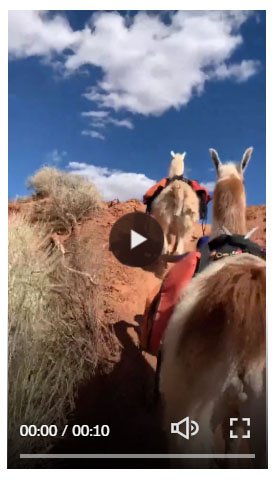
Customising the Portrait Layout
You can tweak the layout depending on your design.
Make the Video Taller
.sqs-native-video .native-video-player {
  padding-bottom: 120% !important;
}
This creates a taller portrait frame.
Limit the Video Width
Portrait videos often look better when the width is restricted.
.sqs-native-video {
  max-width: 400px;
  margin: auto;
}
This centres the video and prevents it from stretching too wide on large screens.
Apply Portrait Styling to Only One Video
If you only want the border applied to one specific video, use the block ID instead of applying the style site-wide.
Example:
/* Making a video block portrait */
#block-yui_123456789 .sqs-native-video .native-video-player {
  padding-bottom: 100% !important;
}
How to Find the Block ID
Right-click the video block
Click Inspect
Look for the block ID in the HTML
This ensures the styling only affects one video.
Key Takeaways
Squarespace video blocks are designed primarily for landscape videos.
Portrait videos may appear with empty side spacing by default.
Using custom CSS allows you to adjust the video container height.
The padding-bottom property changes the aspect ratio of the video frame.
You can customise the layout by adjusting the padding value or limiting the width.
Targeting the block ID allows portrait styling for only one video block.
FAQs
Can Squarespace video blocks display portrait videos?
Yes. Portrait videos can be displayed in Squarespace video blocks, but you may need to adjust the container using custom CSS to ensure the correct aspect ratio.
Does this work with YouTube or Vimeo videos?
This method works best with videos uploaded directly to Squarespace. Embedded videos from YouTube or Vimeo may require a different CSS approach.
Why do portrait videos appear small in Squarespace?
Squarespace assumes a 16:9 landscape ratio for video blocks. When a portrait video is placed inside this frame, it leaves empty space on the sides.
Can I control the portrait video size?
Yes. You can adjust the width using CSS properties such as max-width and centre the video using margin: auto.
Will portrait videos work on mobile devices?
Yes. Portrait videos are particularly effective on mobile because they match the natural vertical orientation of smartphone screens.
Conclusion
As vertical video becomes increasingly popular across social media and digital platforms, many website owners want to integrate this format into their websites. While Squarespace video blocks are designed for landscape videos by default, a simple CSS adjustment allows you to display portrait videos more effectively.
By modifying the video container’s padding, you can transform the default layout so portrait videos appear properly framed and visually balanced. You can also customise the layout further by adjusting the container size or applying the styling to individual video blocks.
Small design adjustments like this can significantly improve how your content is presented, helping your videos look more professional and engaging across both desktop and mobile devices.
If you have any questions or need any help with your Squarespace website design, you can book a 1:1 consultation.




All work in this guide is provided ‘as-is’. Other than as provided this guide makes no other warranties, expressed or implied, and hereby disclaims all implied warranties, including any warranty of fitness for a particular purpose.
If you require professional advice, you can book our consultation services.