Background videos are a powerful way to create visual impact on your website, especially on hero sections built in Squarespace 7.1.
By default, Squarespace sets background videos at normal speed in many cases. The good news is you can easily adjust it..
Table of Contents
Introduction
In Squarespace 7.1, background videos are designed to autoplay silently and loop behind your content. However, the playback speed is not always obvious to new users, and many don’t realise it can be adjusted directly in the editor.
Why Background Video Speed Matters
Background video speed plays a major role in the overall feel and user experience of a website. A slower playback speed can create a more cinematic, elegant, and premium look, while a faster speed can add energy and movement to a design. Adjusting the speed also helps improve readability when text overlays are placed on top of videos, ensuring the background enhances the content instead of distracting from it. On platforms like Squarespace 7.1, customizing video speed allows designers to better match the pacing and mood of a brand or website experience.
How Squarespace Sets Video Speed by Default
Depending on how the video is added, Squarespace may set:
Background videos to 1x (normal speed) in some cases
Embedded videos to 1x (normal speed) by default
YouTube/Vimeo videos to respect their own playback settings
This is why the same video can behave differently depending on setup.
Method 1: Adjust Playback Speed in Section Settings (Recommended)
If you're using a background video in a section, this is the simplest method.
Steps:
Go to the page editor
Click Edit Section on your background video section
Open the Background → Video settings
Scroll down to Playback Speed
Adjust using + / – controls
0.5x = slower motion
1x = normal speed
Higher than 1x = faster motion
This gives you direct control without needing external tools.
Method 2: Use YouTube or Vimeo Video Controls
If your background video is linked externally (instead of uploaded), speed control may depend on the source platform.
For example:
YouTube allows playback speed control in player settings
Vimeo may respect embed-level settings depending on configuration
However, this method is less reliable for true background video use since controls are limited.
Method 3: Edit Video Before Uploading (Best Practice)
The most reliable and professional method is to set speed before uploading.
Use any video editor (such as CapCut, Premiere Pro, or iMovie):
Steps:
Open your video in an editor
Adjust playback speed:
0.5x–0.75x for cinematic feel
1x for natural motion
1.25x–2x for energetic motion
Export the file
Upload to your Squarespace background section
This ensures full creative control and avoids platform limitations.
Key Takeaways
Squarespace often defaults background videos to slower playback
You can adjust speed directly in section settings (if available)
External video embeds may behave differently
The most reliable method is editing the video before upload
Always preview on desktop and mobile for consistency
FAQs
Why does my background video look slower in Squarespace?
Because Squarespace may apply a slower playback speed depending on the video type.
Can I make my background video faster than normal?
Yes. If the playback speed control is available, you can increase it above 1x.
Does this work on mobile?
Yes, but mobile devices may also apply performance optimisations that slightly affect playback.
Can I control speed for YouTube background videos?
Only partially speed is controlled through YouTube settings and is less predictable in background mode.
Conclusion
Changing background video speed in Squarespace 7.1 is straightforward once you understand where the controls live.
For quick adjustments, use the built-in playback speed settings. For full creative control, always edit your video before uploading.
Getting this right helps you create smoother, more intentional website visuals that feel aligned with your brand.
If you have any questions or need any help with your Squarespace website design, you can book a 1:1 consultation.
Artificial intelligence has changed the way websites can be designed. Today, AI can generate website layouts, write content, create images, suggest colour palettes and even produce HTML, CSS and JavaScript.
AI has made it possible to create impressive website designs and working website code without having to be an experienced web developer.
Squarespace has recently improved its Product Pages, giving website owners and designers much more flexibility when creating online stores.
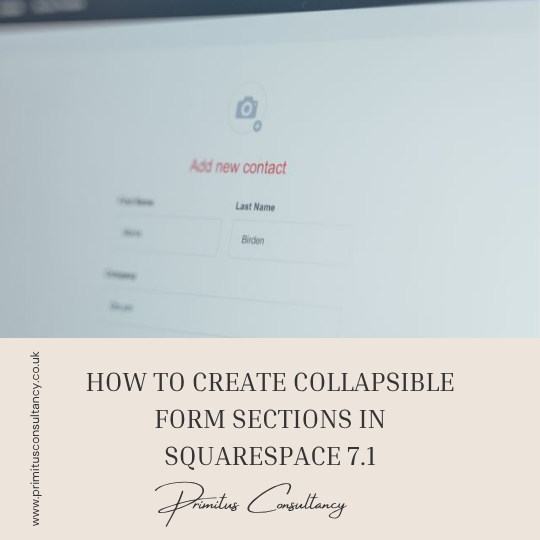
Learn how to create collapsible form sections in Squarespace 7.1 using CSS and JavaScript to organise long forms and improve the user experience.
By default, folder titles in Squarespace 7.1 are not clickable. Instead, they simply expand to reveal the pages inside the folder.
The Squarespace 7.1 Accordion block is a great way to organise content such as FAQs, services, features, and product information.
If you're using categories on your Squarespace 7.1 Shop page, you've probably noticed that the first filter tab is always labelled "All."
If you regularly share CSS, JavaScript, HTML, or code snippets on your Squarespace website, you've probably noticed the Monospace text option in the text editor.
Squarespace 7.1 Auto Layouts (List Sections) are great for structured content, but they quickly run into a common limitation: long descriptions make layouts feel crowded and harder to scan.
If you're publishing on Substack and running a website on Squarespace, you've probably wished you could display your latest posts directly on your site without copying and pasting them manually every time.
Background videos are a powerful way to create visual impact on your website, especially on hero sections built in Squarespace 7.1.
Not every page on your website needs to be visible to the public or searchable on platforms like Google Search. Whether you're working on a draft page, creating private content, or building a conversion funnel, controlling page visibility is essential when using Squarespace.
Vertical video has become the dominant format across platforms like TikTok, Instagram Reels, and YouTube Shorts. As a result, many website owners now want to display portrait videos on their websites.
Videos are one of the most powerful elements you can add to a website. They grab attention, increase engagement, and help explain your products or services quickly.
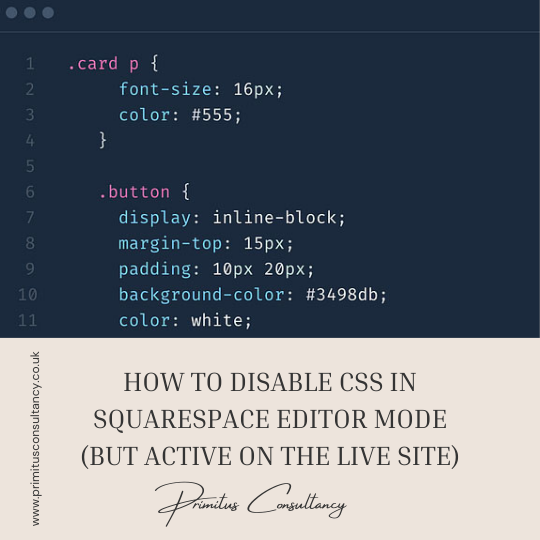
In this tutorial, you'll learn how to disable CSS in the edit mode, but kept active on the live site.
In this tutorial, you'll learn how to remove space under code blocksin Squarespace 7.1. If you’re embedding third-party widgets, videos, or custom code in Squarespace 7.1, you might notice an unexpected gap appearing below your code blocks.
Blogging has changed a lot over the past few years. Search engines are smarter, AI summaries appear at the top of results, and users expect faster, clearer answers. With all these changes, many small business owners are asking a fair question. Does blogging on Squarespace still help with SEO?

Artificial intelligence has moved from being a novelty in web design to becoming a practical tool used by developers, designers, and business owners alike. AI is no longer just about chatbots or auto-generated content.
Running a small business means juggling visibility, credibility, and ease of management, often with limited time and budget. Website platforms have continued to evolve, but the core needs of small businesses have not changed much.
Organic traffic has always been a cornerstone of digital growth, but by 2026 its meaning has expanded far beyond simple search engine rankings. In the past, organic traffic mainly referred to website visitors who arrived through unpaid search results.
Growing a service-based business requires more than just offering excellent services it’s about building a strong brand, attracting the right clients, and creating systems that allow your business to scale.
The centered-links header in Squarespace 7.1 is known for one frustrating quirk: even when there appears to be sufficient horizontal space, the navigation links can unexpectedly wrap onto multiple lines and disrupt the layout.

Creating your first digital product can feel like a daunting task, but with the right roadmap, you can go from a simple idea to a fully launched product with confidence.
Pinterest is a powerful visual platform that can drive traffic to your website especially if your business is image-heavy, such as design, fashion, food, or travel.
Summary blocks in Squarespace 7.1 are a powerful tool for showcasing blog posts across different pages. These blocks often include a ‘Read More’ link, encouraging visitors to click through and read the full article.
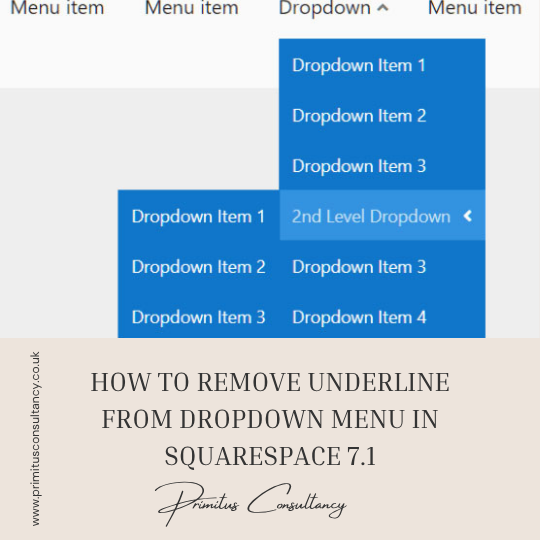
By default, Squarespace 7.1 applies underlines to links in your site’s header and dropdown menus—especially when hovered or active. While this can help indicate clickable elements, many site owners prefer a cleaner, more modern look without the underline, especially in dropdown menus.
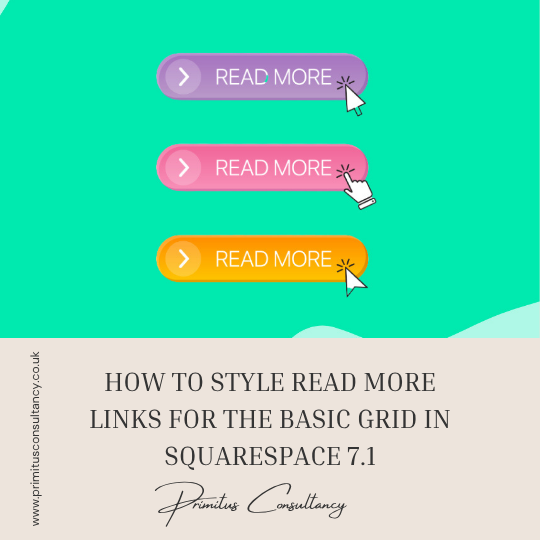
The "Read More" link in Squarespace’s basic blog grid layout often comes with default styling that might not align with your site’s visual identity. With a few simple tweaks using custom CSS, you can transform this link into a branded and interactive element that encourages clicks and improves the overall look of your blog feed.

If you're building a website that needs to reach an international audience—or simply want your content to appear in a different language—changing your language settings on Squarespace is a great way to enhance user experience and increase accessibility.
The "Read More" link in your blog summaries or excerpts on Squarespace can help guide visitors to the full post. However, by default, this link often comes underlined, which might not always match your site's aesthetic.
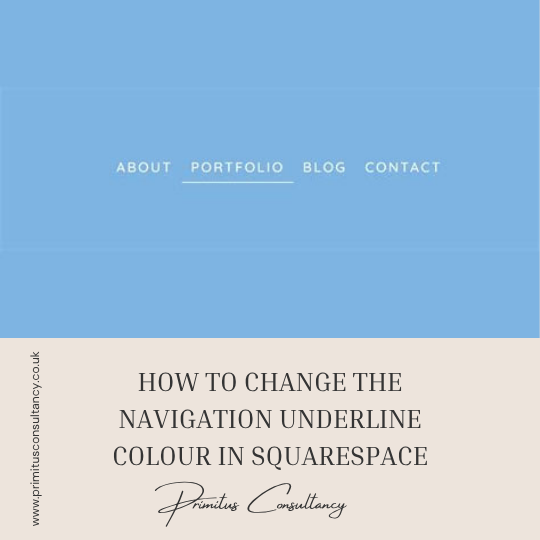
By default, Squarespace 7.1 adds an underline or hover effect to navigation links in your site header — but it may not always match your brand’s color palette.
All work in this guide is provided ‘as-is’. Other than as provided this guide makes no other warranties, expressed or implied, and hereby disclaims all implied warranties, including any warranty of fitness for a particular purpose.
If you require professional advice, you can book our consultation services.