How to create collapsible form sections in Squarespace 7.1
Long forms can be overwhelming for visitors, especially when you're collecting detailed information through applications, questionnaires, booking requests, or onboarding forms.
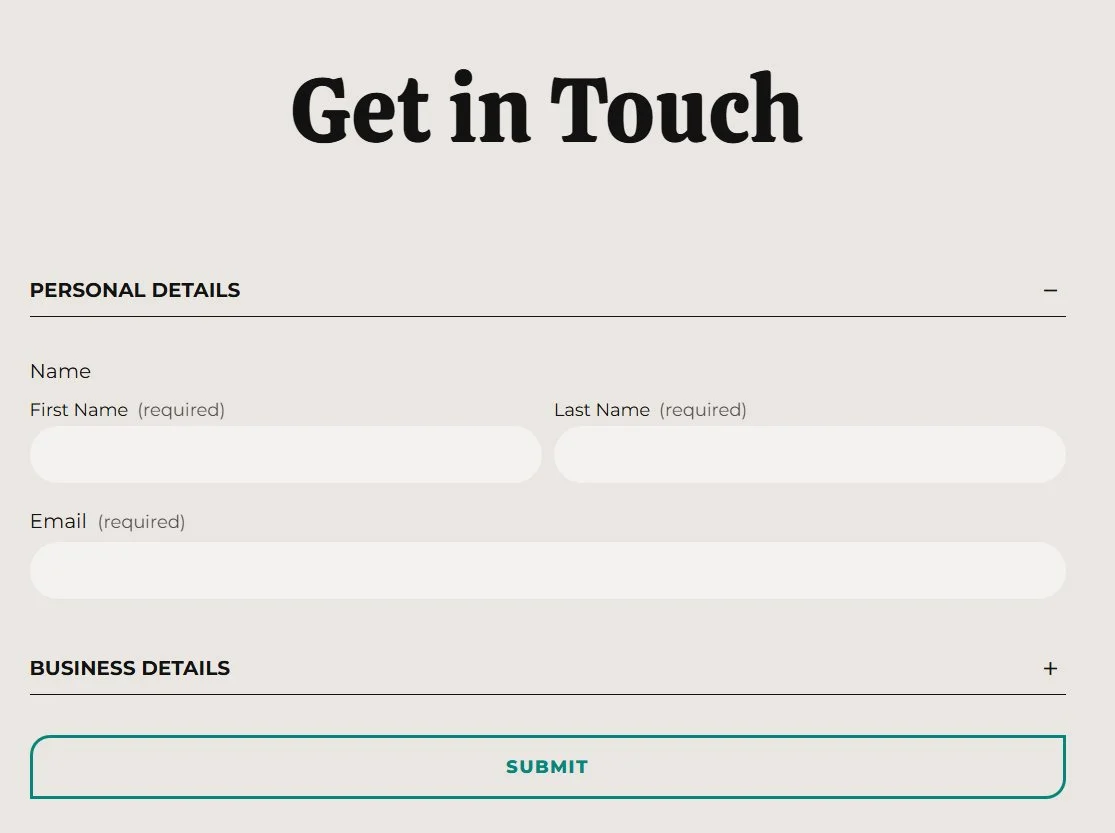
A simple solution is to split your form into collapsible sections. Instead of displaying every field at once, users can expand only the section they need, making the form cleaner, easier to navigate, and less intimidating.
In this tutorial, you'll learn how to create collapsible sections inside a native Squarespace Form Block using a small amount of CSS and JavaScript.
Table of Contents
Why Create Collapsible Form Sections?
Using collapsible sections provides several benefits:
Improves the overall user experience
Makes long forms feel shorter
Organises related fields into logical groups
Helps users focus on one section at a time
Gives your forms a cleaner, more professional appearance
Create Your Form Sections
The collapsible sections are created using Squarespace's Line form field. Rather than acting as a form input, each Line field becomes a clickable section heading that separates your form into logical groups.
For each section you want to create:
Add a Line field.
Enter the section title (for example, Personal Information or Project Details).
Enable the Underline option.
The JavaScript identifies every underlined Line field as the beginning of a new collapsible section. Any form fields placed beneath that Line field will belong to that section until another underlined Line field is encountered.
Understanding the Underline Option
The Underline setting is an important part of this tutorial.
Normally, enabling Underline simply displays a horizontal line beneath the heading. However, this tutorial uses that styling as an identifier.
Whenever the script finds a Line field with Underline enabled, it treats it as the start of a new collapsible section.
This means the Underline option serves two purposes:
Visually separates your form into sections.
Allows the JavaScript to identify which headings should be clickable.
If the Underline option is not enabled, the script will ignore that Line field.
How It Works
The script scans your form for every underlined Line field.
It then automatically groups all form fields beneath that heading until it reaches the next underlined Line field.
Clicking a section heading simply hides or reveals the fields that belong to that group.
Because the grouping is determined entirely by the position of the Line fields, you can reorganise your form at any time without changing the code.
Step-by-step instructions
Step 1: Add the JavaScript
Add this code to:
Custom Code → Code Injection → Footer
<!-- Copyright Primitus Consultancy -->
<!-- Create collapsible form sections in Squarespace 7.1 -->
<script>
  (() => {
    /* ==========================================================
       COLLAPSIBLE FORM SECTIONS
    ========================================================== */
    const PC_sectionSelector = ".field-list > .section.line-field.underline";
    const PC_hiddenClass = "pc-form-hidden";
    const PC_openClass = "pc-form-open";
    /*
       Initialise collapsible sections
    */
    function PC_initCollapsibleForms() {
      const PC_sections = document.querySelectorAll(PC_sectionSelector);
      if (!PC_sections.length) return;
      PC_sections.forEach((PC_section) => {
        // Prevent duplicate initialisation
        if (PC_section.dataset.pcReady === "true") return;
        PC_section.dataset.pcReady = "true";
        /*
           Start collapsed
        */
        PC_closeFormSection(PC_section);
        /*
           Accessibility
        */
        PC_section.setAttribute("role", "button");
        PC_section.setAttribute("tabindex", "0");
        PC_section.setAttribute("aria-expanded", "false");
        /*
           Click
        */
        PC_section.addEventListener("click",
          () => {
            PC_toggleFormSection(PC_section);
          });
        /*
           Keyboard support
        */
        PC_section.addEventListener("keydown",
          (PC_event) => {
            if (PC_event.key === "Enter" || PC_event.key === " ") {
              PC_event.preventDefault();
              PC_toggleFormSection(PC_section);
            }
          });
      });
    }
    /*
       Open / Close toggle
    */
    function PC_toggleFormSection(PC_section) {
      const PC_isOpen = PC_section.classList.contains(PC_openClass);
      if (PC_isOpen) {
        PC_closeFormSection(PC_section);
      } else {
        PC_openFormSection(PC_section);
      }
    }
    /*
       Open section
    */
    function PC_openFormSection(PC_section) {
      PC_section.classList.add(PC_openClass);
      PC_section.setAttribute("aria-expanded", "true");
      let PC_nextElement = PC_section.nextElementSibling;
      while (PC_nextElement && !PC_nextElement.matches(PC_sectionSelector)) {
        PC_nextElement.classList.remove(PC_hiddenClass);
        PC_nextElement = PC_nextElement.nextElementSibling;
      }
    }
    /*
       Close section
    */
    function PC_closeFormSection(PC_section) {
      PC_section.classList.remove(PC_openClass);
      PC_section.setAttribute("aria-expanded", "false");
      let PC_nextElement = PC_section.nextElementSibling;
      while (PC_nextElement && !PC_nextElement.matches(PC_sectionSelector)) {
        PC_nextElement.classList.add(PC_hiddenClass);
        PC_nextElement = PC_nextElement.nextElementSibling;
      }
    }
    /*
       Start script
    */
    PC_initCollapsibleForms();
    /*
       Monitor Squarespace dynamic loading
    */
    const PC_observer = new MutationObserver(() => {
      PC_initCollapsibleForms();
    });
    PC_observer.observe(document.body, {
      childList: true,
      subtree: true
    });
  })();
</script>
<!-- Create collapsible form sections in Squarespace 7.1 -->

Step 2: Add CSS
Custom Code → Custom CSS
 /* ===========================
   COLLAPSIBLE FORM SECTIONS
=========================== */
  /* ----------------------
   Hidden Section Fields
--------------------------- */
  .pc-form-hidden {
    display: none !important;
  }

  /* ----------------------
   Section Heading Styling
---------------------------- */
  .form-item.section.line-field.underline {
    cursor: pointer;
    position: relative;
  }

  /* Section title */
  .form-item.section.line-field.underline .title {
    display: flex;
    align-items: center;
    justify-content: space-between;
    width: 100%;
    font-weight: bold;
    text-transform: uppercase;
  }

  /* ---------------------
   First Section
   Always Expanded
---------------------------- */
  .field-list>.form-item.section.line-field.underline:first-child {
    cursor: default;
  }

  .form-item.section.line-field.underline {
    cursor: pointer;
  }

  /* -------------------------
   Expand / Collapse Icon
-------------------------- */
  .form-item.section.line-field.underline .title::after {
    content: "+";
    display: flex;
    align-items: center;
    justify-content: center;
    width: 24px;
    height: 24px;
    font-size: 24px;
    font-weight: 400;
    line-height: 1;
    transition: transform 0.25s ease;
  }

  /* --------------
   Open State
------------------ */
  .form-item.section.line-field.underline.pc-form-open .title::after {
    content: "−";
  }

  /* -------------
   Hover Effect
----------------- */
  .form-item.section.line-field.underline:not(:first-child):hover .title {
    opacity: 0.75;
  }

  /* -------------------------
   Optional: Improve Spacing
---------------------------- */
  .form-item.section.line-field.underline {
    padding-top: 12px;
    padding-bottom: 12px;
  }

  /* ------------------
   Accessibility
------------------------- */
  .form-item.section.line-field.underline:focus-visible {
    outline: 2px solid currentColor;
    outline-offset: 4px;
  }
Key Takeaways
This tutorial works with:
Squarespace 7.1
Native Form Blocks
Fluid Engine
Most standard form layouts
Some heavily customised form layouts may require small selector changes depending on your site's CSS.
FAQs
Does this work on Squarespace 7.1?
Yes. This tutorial is designed specifically for Squarespace 7.1.
Does it work with Fluid Engine?
Yes.
Can multiple sections stay open?
Yes. The JavaScript can be modified to allow multiple expanded sections or only one open at a time.
Can I use custom icons?
Absolutely. You can replace the default plus/minus icons with SVGs or Font Awesome icons.
Does this affect form submissions?
No. The functionality only changes how the form is displayed. All fields continue to submit normally.
Conclusion
Collapsible form sections are an excellent way to improve long forms without using third-party plugins. By grouping related fields into expandable sections, you can create a cleaner interface that encourages visitors to complete your forms while keeping your Squarespace website looking professional.
If you have any questions or need any help with your Squarespace website design, you can book a 1:1 consultation.












All work in this guide is provided ‘as-is’. Other than as provided this guide makes no other warranties, expressed or implied, and hereby disclaims all implied warranties, including any warranty of fitness for a particular purpose.
If you require professional advice, you can book our consultation services.