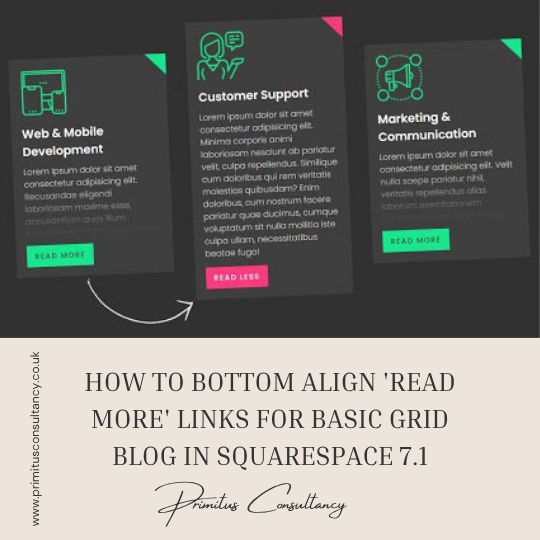
How to create a “Read More” dropdown in Auto Layouts (Squarespace 7.1)
Squarespace 7.1 Auto Layouts (List Sections) are great for structured content, but they quickly run into a common limitation: long descriptions make layouts feel crowded and harder to scan.
A simple way to fix this is by adding a “Read More” dropdown toggle inside each list item. This keeps your design clean by default, while still allowing users to expand content when they want more detail.
In this guide, you’ll build a lightweight solution using custom JavaScript + CSS, with no plugins required.
Table of Contents
Why this approach is useful
Squarespace doesn’t natively support collapsible content inside Auto Layout descriptions. That means you often have to choose between:
Clean design (but less detail visible)
Full detail (but cluttered layout)
This solution bridges that gap by letting you:
Keep layouts visually clean
Hide long text behind a toggle
Improve readability and user experience
Avoid third-party plugins
Maintain native Squarespace structure
How the system works
This method uses a simple idea:
A <u> tag acts as the “Read More” trigger (You simply underline the text - Read More) See image below. Note any text can be underlined e.g show etc.
Everything after it is automatically hidden
Clicking toggles the hidden content with a smooth animation
No restructuring of Squarespace blocks is needed.
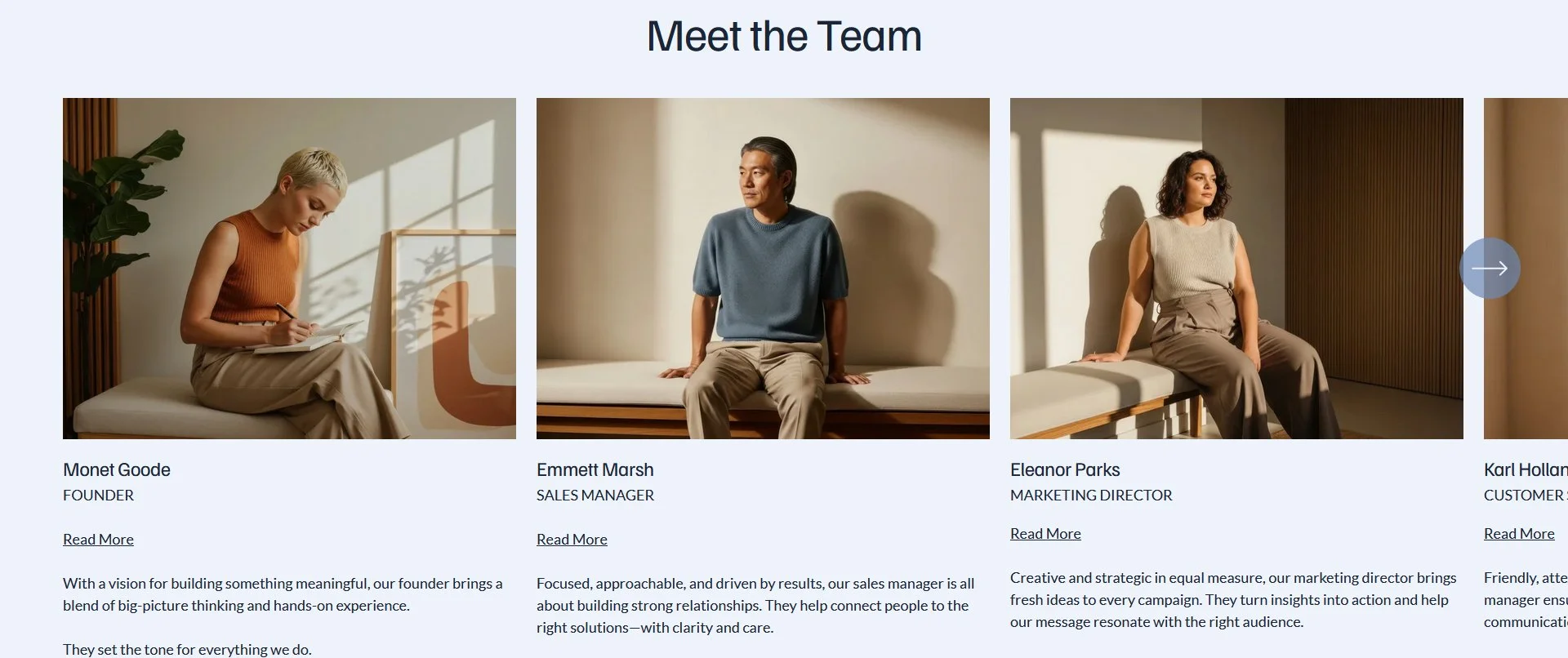
Step 1: Structure your content in Squarespace
Inside an Auto Layout list item description, structure your text like this:
This is the visible summary text that users will always see.
<u>Read More</u>
This is the hidden content that will expand when clicked.
You can add multiple lines, paragraphs, or detailed information here.
💡 Important: Everything you want hidden must come after the <u> tag.
Step 2: Add the JavaScript (core functionality)
Add this code to:
Settings → Advanced → Code Injection → Footer
<!-- Copyright Primitus Consultancy -->
<!-- How to create a Read More dropdown in Auto Layouts -->
<script>
document.addEventListener("DOMContentLoaded", function () {

  // Prevent the script from running in Squarespace edit mode
  if (document.body.classList.contains("sqs-edit-mode-active")) return;

  // Smoothly expand the hidden content
  function PC_SlideDown(element) {
    element.style.display = "inline";

    const height = element.scrollHeight + "px";

    element.style.height = "0";
    element.style.overflow = "hidden";
    element.style.transition = "height 0.3s ease";

    requestAnimationFrame(function () {
      element.style.height = height;
    });

    element.addEventListener("transitionend", function () {
      element.style.height = "";
      element.style.overflow = "";
    }, { once: true });
  }

  // Smoothly collapse the hidden content
  function PC_SlideUp(element) {
    element.style.height = element.scrollHeight + "px";
    element.style.overflow = "hidden";
    element.style.transition = "height 0.3s ease";

    requestAnimationFrame(function () {
      element.style.height = "0";
    });

    element.addEventListener("transitionend", function () {
      element.style.display = "none";
      element.style.height = "";
    }, { once: true });
  }

  // Initialise all Read More dropdowns
  function PC_InitialiseReadMoreDropdowns() {

    document.querySelectorAll(".list-item-content__description p:has(u)").forEach(function (paragraph) {

      const trigger = paragraph.querySelector("u");
      if (!trigger) return;

      const hiddenNodes = [];
      let currentNode = trigger.nextSibling;

      while (currentNode) {
        hiddenNodes.push(currentNode);
        currentNode = currentNode.nextSibling;
      }

      const contentWrapper = document.createElement("span");
      contentWrapper.style.display = "none";
      contentWrapper.style.overflow = "hidden";

      hiddenNodes.forEach(function (node) {
        contentWrapper.appendChild(node);
      });

      paragraph.appendChild(contentWrapper);

      trigger.style.cursor = "pointer";

      trigger.addEventListener("click", function () {

        const isOpen = contentWrapper.style.display !== "none";

        if (isOpen) {
          PC_SlideUp(contentWrapper);
          trigger.classList.remove("open-dropdown");
        } else {
          PC_SlideDown(contentWrapper);
          trigger.classList.add("open-dropdown");
        }

      });

    });

  }

  // Run the script
  PC_InitialiseReadMoreDropdowns();

});
</script>
<!-- End How to create a Read More dropdown in Auto Layouts -->
Step 3: Add the CSS styling
From the Squarespace dashboard navigate to Pages > Custom Code > Custom CSS and paste the code below
body:not(.sqs-edit-mode-active) .list-item-content__description u {
  align-items: center;
  border-bottom: 1px solid #152944;
  display: inline-flex;
  cursor: pointer;
  font-size: 14px;
  justify-content: space-between;
  text-decoration: none;
  text-transform: uppercase;
  min-width: 100px;
  pointer-events: auto;
}

body:not(.sqs-edit-mode-active) .list-item-content__description u::after {
  content: '↓';
  display: inline-block;
  transition: transform 0.3s ease;
}

body:not(.sqs-edit-mode-active) .list-item-content__description u.open-dropdown::after {
  transform: rotate(180deg);
}
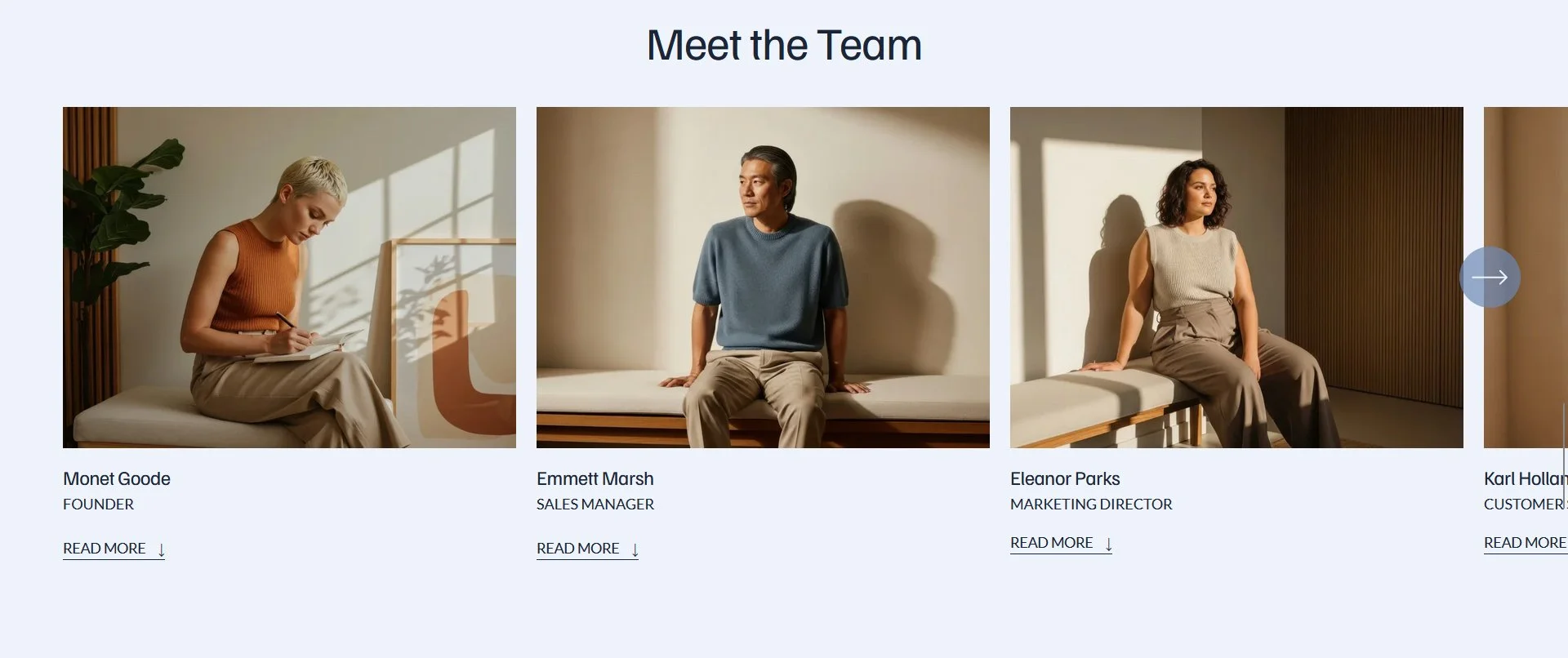
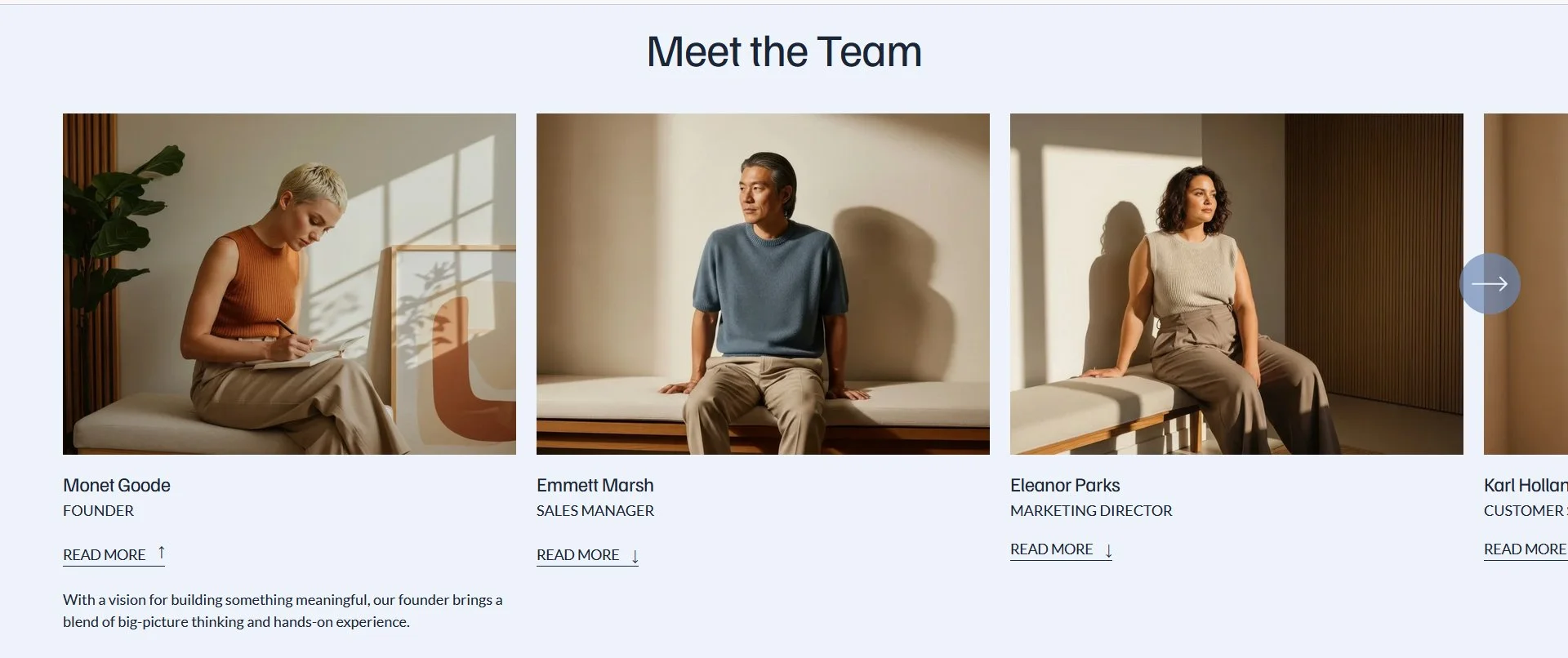
Customisation Options
You can easily tailor the behaviour and style:
Change the animation speed
transition: 'height 0.3s ease';Try:
0.2s → faster
0.5s → smoother
Change the dropdown indicator
Update this in CSS:
content: '↓';Examples:
+
>
Key Takeaways
Works without plugins or extensions
Keeps Auto Layout designs clean and structured
Improves readability and user experience
Fully compatible with Squarespace 7.1
Easy to customise styling and behaviour
Ideal for services, portfolios, FAQs, and long-form content
FAQs
Does this work on all Squarespace sections?
No. It is designed specifically for Auto Layout / List Sections.
Is the hidden content SEO-friendly?
Yes. The content remains in the HTML and is only visually hidden.
Can I rename “Read More”?
Yes. Just change the <u> text inside your content.
Does it work on mobile?
Yes. The interaction is touch-friendly and responsive.
Can I use multiple dropdowns?
Yes, each list item can have its own independent toggle.
Conclusion
This method gives you a clean, scalable way to manage long-form content inside Squarespace 7.1 Auto Layouts without compromising design.
Instead of overwhelming users with large blocks of text, you create a controlled reading experience where content expands only when needed.
It’s a simple enhancement, but it significantly improves usability—especially for service lists, portfolios, and structured content layouts.
If you have any questions or need any help with your Squarespace website design, you can book a 1:1 consultation.



All work in this guide is provided ‘as-is’. Other than as provided this guide makes no other warranties, expressed or implied, and hereby disclaims all implied warranties, including any warranty of fitness for a particular purpose.
If you require professional advice, you can book our consultation services.